
Fing - Network Tools
Fing LimitedTools
4.515.79K Reviews
- Version
- 12.13.3
- Installs
- 50.00M
- Age Rating
- Everyone
Screenshots
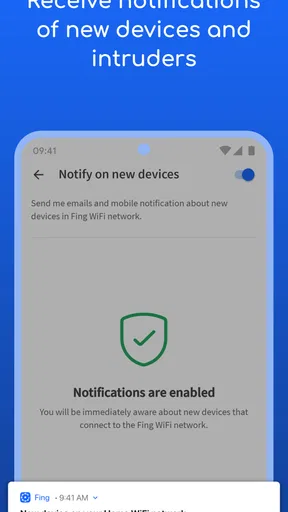
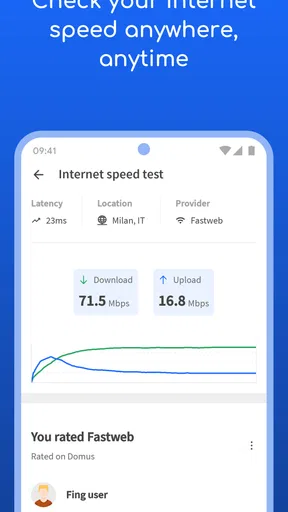
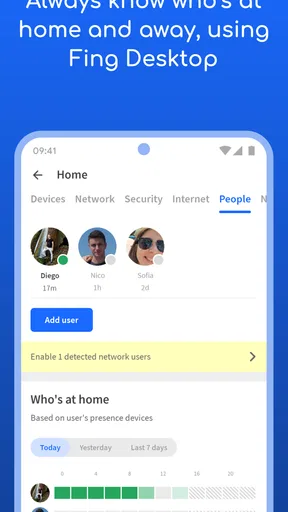
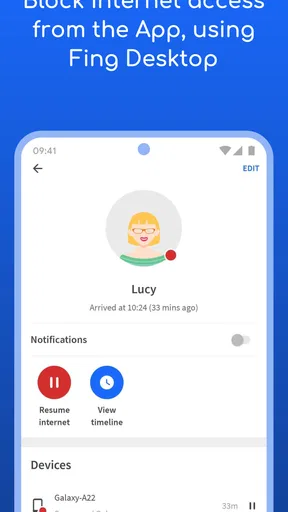
Our Review of Fing - Network Tools
 Analysis by Appyee
I installed Fing because I wanted a clearer view of what was happening on my home Wi-Fi, not another app that only looks useful for five minutes. It is a free tools app from Fing Limited for Android and iOS, built around network discovery, device identification, security checks, and practical troubleshooting. After using it beyond the initial scan, I found that its real value is less about dramatic “hacker detection” and more about giving ordinary users a repeatable way to understand their own network.
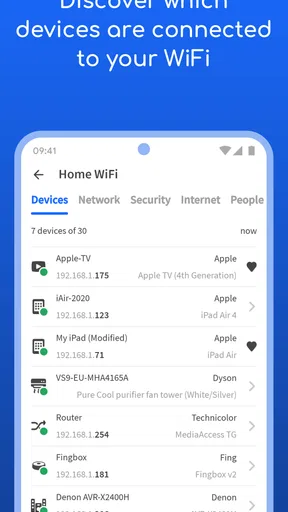
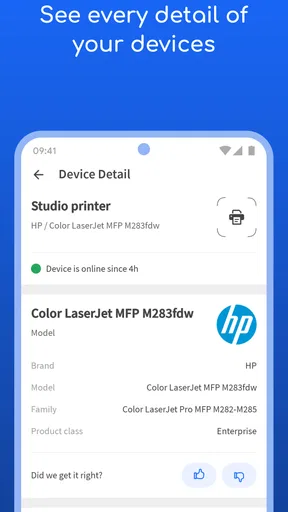
The first scan is immediately satisfying. Fing shows the devices connected to the network and helps turn a confusing list of technical entries into something more recognizable. A phone, television, laptop, printer, streaming box, smart speaker, or unfamiliar device can be examined one by one instead of being treated as an anonymous item in the router interface. That simple change makes the app approachable for people who normally avoid network tools.
It has also built a substantial audience over time. The app has been available since late 2010, carries a 4.5 average from around 913 thousand ratings, and has passed 50 million installs. Those figures do not guarantee that every household will need it, but they do show that Fing has remained relevant well beyond the novelty of a single network scan.
What makes Fing useful after the first scan
Once the first scan has made the device list familiar, I find the more useful question is what changed and why. This section looks at how a light-touch routine—checking after a new device joins, a router is replaced, or a connection acts strangely—can turn Fing into a practical reference rather than a source of constant alerts. It also sets up the next question: how much confidence should I place in what a scan reveals?
The first-week appeal is easy to understand
During the first week, I would expect most people to use Fing for three jobs: checking who is connected, identifying devices, and investigating a connection problem. The dashboard gives you a more readable starting point than many router apps, especially when the router labels devices with vague names or incomplete technical details.
A realistic example is a slow evening at home. Several people are streaming, a game console is downloading an update, and the wireless connection feels unreliable. Instead of guessing whether the internet provider, the router, or one device is responsible, I can open Fing and inspect the network from the device list. It does not magically fix congestion, but it helps narrow the question: is something unfamiliar connected, are there more devices active than expected, or is the problem likely outside the local network?
That distinction matters. Many people restart the router repeatedly because they cannot see what is happening. Fing gives them an observation step before the restart. In my experience, that makes troubleshooting calmer and more useful. I can note which devices are present, compare the situation later, and then decide whether to reboot equipment, move closer to the router, disconnect a device, or contact the internet provider.
The app is also helpful when adding smart-home equipment. A new camera, bulb, plug, or speaker may appear with an unfamiliar manufacturer name. Fing can make that appearance visible, which gives me a way to confirm that the device actually joined the intended network. This is a small workflow improvement, but it is more useful than opening a router control panel filled with abbreviations.
It is not only an intruder alarm
The strongest way to use Fing is not to treat every unknown device as an attacker. A device can look unfamiliar because of a manufacturer label, a changed hostname, a guest connection, or a family member’s equipment that was forgotten. I prefer to use the first scan as a baseline: I identify the devices I recognize, then investigate changes rather than reacting to every unfamiliar entry.
This is one of the app’s less obvious lessons. Network visibility is valuable only when paired with context. If I install Fing and immediately panic over every technical name, the app becomes a source of noise. If I use it to build a mental inventory of my household devices, later scans become much easier to interpret.
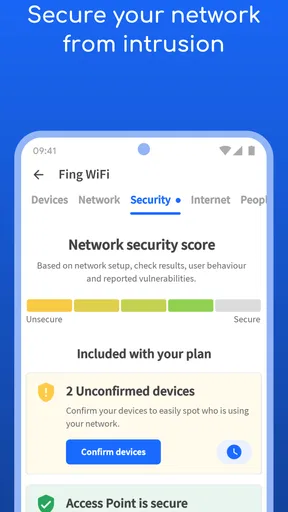
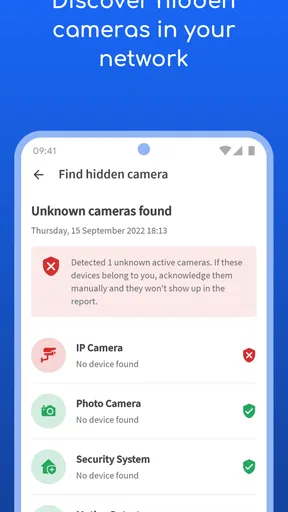
The security-oriented tools add another layer. Fing is designed to help with intruder checks, hidden-camera concerns, and vulnerabilities, but those subjects deserve careful expectations. A network scan can reveal useful clues and suspicious changes; it should not be treated as proof that a room is safe or that every security problem has been eliminated. For a serious privacy investigation, I would combine Fing with physical inspection, router security settings, device updates, and professional help where appropriate.
Useful workflows that are easy to overlook
One practical workflow is to use the app before and after changing your network. If you replace a router, rename a wireless network, or add several smart devices, the device list becomes a convenient checklist. I can confirm that expected equipment returns and spot anything that should not be there. This is more reliable than trying to remember every device from memory.
A second useful habit is troubleshooting from the edge of the network inward. I start with the device that is having trouble, check whether it appears normally, and then compare it with another device in the same location. If one phone is slow while a nearby laptop works normally, the problem may be local to the phone. If everything struggles, the router or internet connection deserves more attention. Fing does not replace a speed test or router diagnostics, but its device view helps prevent random guessing.
A third insight is that the app can help with household communication. When someone says, “The Wi-Fi is broken,” I can use the device list to ask a better question: is the affected device connected, and are other devices working? That turns a vague complaint into a specific issue. For families, shared homes, and small workspaces, this is often more valuable than advanced terminology.
What the monthly value looks like
Fing earns a lasting place only if I return to it after the first week. For me, recurring value comes from occasional checks rather than constant monitoring. I do not need to open it every day, but I do find it worthwhile after installing new equipment, noticing unusual network behavior, or checking the home setup after visitors have connected devices.
It can also be useful when moving into a new apartment or staying in a rental. A quick look at the local network can help me understand whether the connection is shared, whether expected equipment is visible, and whether the environment feels different from a private home network. I would still avoid entering sensitive information on an unfamiliar network, but visibility can support better judgment.
For people who manage a small office or a home with many connected products, the app’s value is naturally higher. The more devices a person owns, the harder it becomes to remember what belongs there. Fing turns that growing collection into something I can review instead of leaving it entirely to the router’s often-unfriendly interface.
For a very simple household with one router, a couple of phones, and no smart-home equipment, the recurring need is lower. In that situation, Fing may become an occasional emergency tool rather than a daily companion. That is not a weakness by itself; it is simply a reminder that network utilities are most valuable when the network has enough complexity to justify them.
Where the maintenance burden appears
The app is easy to open, but maintaining a useful device inventory still requires human effort. I have to recognize devices, remember guests, and understand that a familiar product may appear differently after a network change. Fing can organize what it sees, but it cannot know the social context of every device in my home.
That means the best long-term routine is light and deliberate. I would review the list after adding equipment, give myself a short explanation for unfamiliar items, and avoid trying to create a perfect technical database. A simple note such as “living-room television” is often more useful than spending too much time on model details that may change.
There is also a difference between seeing a device and controlling it. Fing helps with visibility and investigation, but the router remains the place where many network decisions are made. If I want to block a device, change wireless credentials, create a guest network, or adjust router-specific settings, I may still need the router’s own app or web interface. This two-app workflow can feel fragmented, particularly for beginners who hoped Fing would be a complete network-control center.
That is an important trade-off when comparing it with the usual alternatives. A router manufacturer’s app is often better for changing settings on that particular router, while Fing is more useful when I want a broader, easier-to-read view that is not tied as closely to one hardware brand. Basic operating-system network pages are fine for checking whether my own phone is connected, but they do not offer the same household-wide perspective. Specialist network scanners may provide deeper technical detail, yet they can be less comfortable for someone who wants explanations rather than raw output.
Sources of fatigue and friction
The first source of fatigue is alert interpretation. Security language can make ordinary uncertainty feel urgent. If I see an unfamiliar device, I need to investigate it sensibly instead of assuming the worst. This is especially important in apartment buildings, shared homes, guest networks, and places where several routers or repeaters may be visible.
The second is repetition. Scanning the same quiet network every day rarely creates new insight. Fing becomes tiring when I expect it to provide a fresh discovery on every launch. Its long-term role is closer to a maintenance tool than an entertainment app: useful at the right moments, unnecessary when nothing has changed.
The third is the boundary between free access and optional paid features. Fing is free to download and use, with in-app purchases ranging from $0.99 to $69.99 per item. That range means I would examine the purchase screen carefully before committing, especially if I only need occasional device discovery. A free starting point is welcome, but users should decide whether their needs justify any upgrade rather than assuming every advanced security feature is essential.
The app is rated for Everyone, and it supports devices running Android 8.0 or later. That makes it accessible to many users, although anyone with an older phone should check compatibility before planning around it. The current version is 12.13.2, so the experience may evolve as Fing Limited updates the product; I would keep expectations focused on the app’s core purpose rather than on one particular interface arrangement.
Who should use it, and who should skip it
I recommend Fing to people who have several connected devices, share a home network, use smart-home products, or regularly troubleshoot Wi-Fi for family members. It is also a good learning tool for someone who wants to understand the difference between a router problem, a device problem, and an unfamiliar connection without immediately studying networking manuals.
It is particularly suitable for a cautious user who wants a recurring checkup routine. After a new device is installed, after guests have used the network, or when connection behavior changes, Fing provides a sensible place to start. The app’s practical strength is not that it makes every problem disappear; it helps me ask better questions before taking action.
I would skip it if I only want to change router settings and already have a capable router app. I would also avoid relying on it as a complete hidden-camera detector or as a guarantee of network safety. People who need enterprise-grade monitoring, detailed packet analysis, or continuous professional supervision should choose tools designed for those jobs. Fing is more approachable than many specialist utilities, but that accessibility comes with limits in depth and certainty.
Does it earn permanent space on my phone?
My long-term answer is yes, but with a qualification: I keep Fing for periodic maintenance, not constant use. Its lasting value comes from reducing uncertainty when the network changes. I can check whether a new device appeared, investigate a mysterious connection, and organize a troubleshooting conversation without starting from a blank screen.
The app also benefits from being free at the entry point, which makes it easy to keep available for occasional needs. The optional purchases may be worthwhile for users who need more advanced capabilities, but casual users should not feel pressured to turn a simple network inventory into a subscription-like commitment. The right value depends on how often the app solves a real problem for your household.
What I appreciate most is the balance between technical information and ordinary usefulness. Fing does not require me to become a network engineer before I can benefit from it. At the same time, it rewards a more careful user who learns to compare scans, recognize device manufacturers, and separate a suspicious change from a harmless unfamiliar label.
After the novelty fades, the app survives because Wi-Fi networks are never completely static. Phones are replaced, smart devices are added, visitors connect, routers are restarted, and unexplained slowdowns eventually happen. Fing gives those moments a repeatable workflow. Its best role is a calm network checkup, not a magic security shield.
For that reason, I would recommend it to a friend who wants practical visibility without jumping straight into specialist tools. I would tell that friend to establish a baseline, use the app when something changes, verify alarming results through the router and the physical environment, and pay only for capabilities that solve a recurring need. Used that way, Fing earns its place as a dependable utility rather than a forgotten download.
Verdict
Strengths of Fing - Network Tools
- Quickly discovers devices connected to your Wi‑Fi network.
- Provides useful details such as IP, MAC, and device manufacturer.
- Includes network speed tests and internet outage checks.
- Helpful tools for troubleshooting connectivity and unknown devices.
- Clean interface makes core scanning features easy to access.
Limitations of Fing - Network Tools
- Some advanced monitoring features require a Fing Premium subscription.
- Scans may be slower or less complete on restricted mobile networks.
- Device names and identities are not always recognized accurately.
- Frequent scans can increase battery and network usage.
- Certain tools depend on compatible routers or local network permissions.
Similar Picks in This Category
View All
Google LLC4.0

Gboard - the Google Keyboard
Google LLC4.5

Google Play services
Google LLC4.3

Google Play Store
Google LLC4.9

Files by Google
Google LLC4.5

SHAREit: Transfer, Share Files
Smart Media4U Technology Pte.Ltd.4.3
Frequently Asked Questions
What is Fing - Network Tools used for?
Fing - Network Tools is designed to help you understand and monitor the network you are connected to. After scanning a Wi‑Fi network, it can display connected devices, identify manufacturers, check IP and MAC addresses, and provide tools such as ping, traceroute, and port checking. It is useful for troubleshooting, spotting unfamiliar devices, and learning more about home or small-office network activity.
Can Fing detect unknown devices connected to my Wi‑Fi network?
Yes, Fing can scan your local network and show devices that appear to be connected, including phones, computers, routers, smart TVs, cameras, and other smart-home equipment. Device names and manufacturers are often identified automatically, although results are not always perfect. An unfamiliar entry is not automatically malicious, so you should compare the information with your own equipment before taking action.
Does Fing - Network Tools require technical knowledge to use?
Fing is relatively approachable for beginners because its main network scan presents results in a clear device list. You can start with basic tasks, such as checking who is connected to your Wi‑Fi, without understanding advanced networking. However, features involving ports, DNS, ping, traceroute, or detailed diagnostics may require some technical knowledge to interpret accurately and use responsibly.
Is Fing free, and are there premium features?
Fing offers core network-scanning and diagnostic functionality at no cost, making it possible to inspect a network without immediately subscribing. Depending on the platform and current version, additional tools, monitoring options, reports, alerts, or advanced insights may be available through paid features or a subscription. Review the in-app pricing and store listing carefully before confirming any purchase.
Is Fing safe to use, and what permissions does it need?
Fing is generally intended as a legitimate network-analysis tool, but it needs access to network-related information to perform scans and identify devices. On some phones, operating-system restrictions may also require permissions such as local-network access or location access for Wi‑Fi information. Only install it from the official app store, review its privacy policy, and avoid scanning networks without authorization.
